
Step 1)
Log in using your credentials
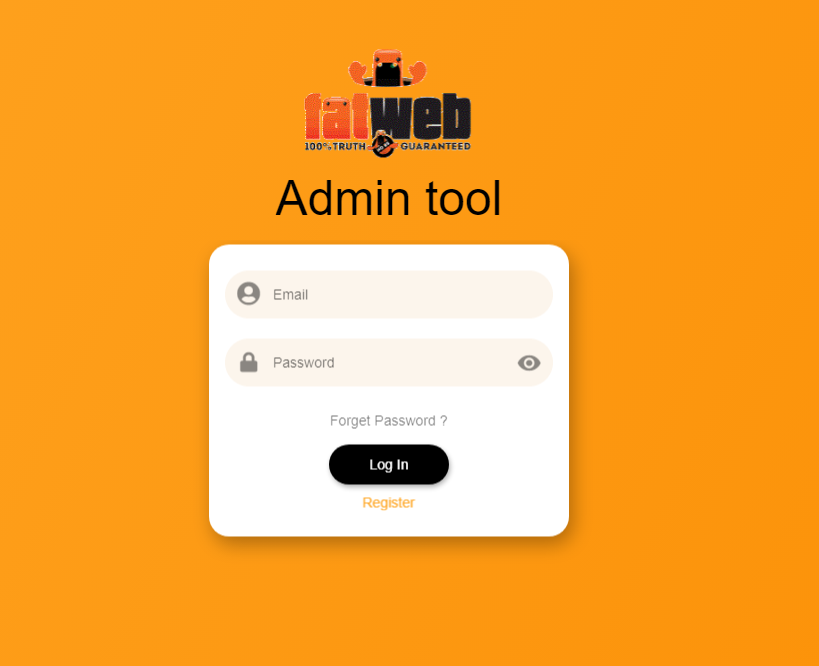
Log in using your credentials
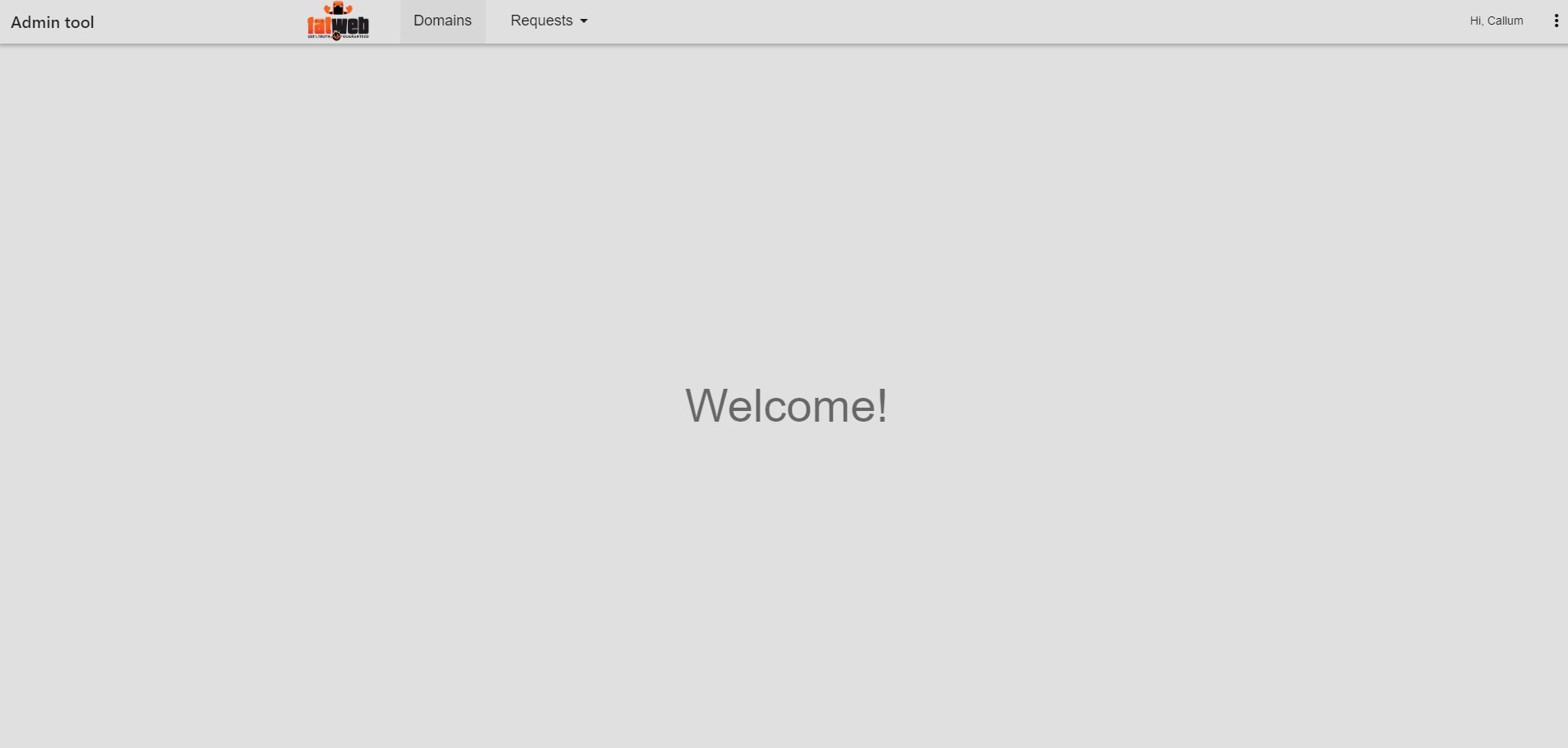
On your top bar you will have 2 buttons. Domains is where you can view website credentials or request for them. Requests is where you can view and manage the requests you have made.
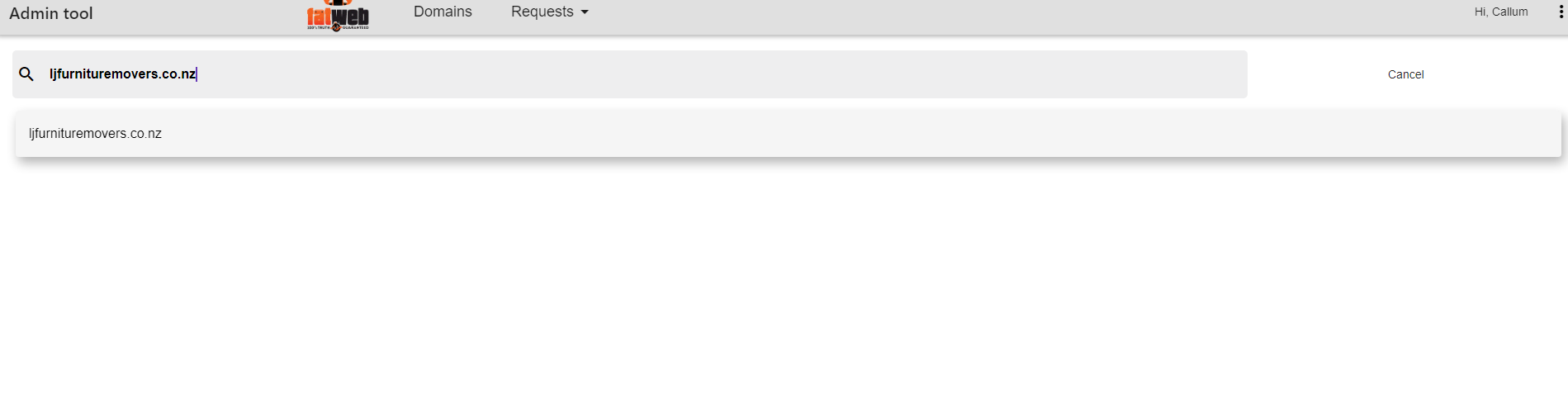
Click on ‘Domains’ and type in the url for any website you want to find the information for. Some information here is public however for sensitive information (CPanel credentials, WP admin credentials), these will need to be manually approved by the server administrator.
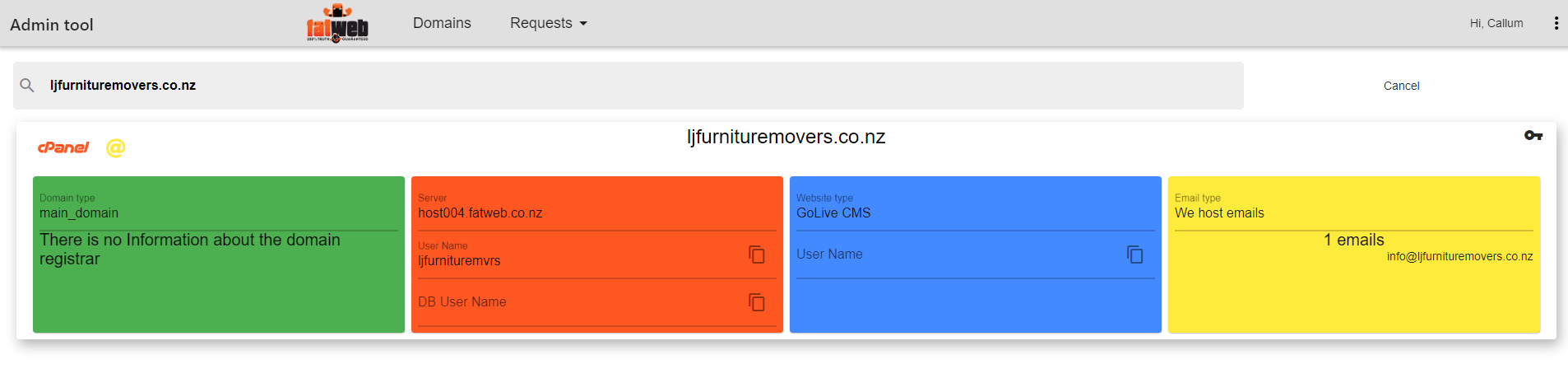
Click on the domain displayed in the search result to view it’s full information. To request access click on the black key icon in the top right hand corner.
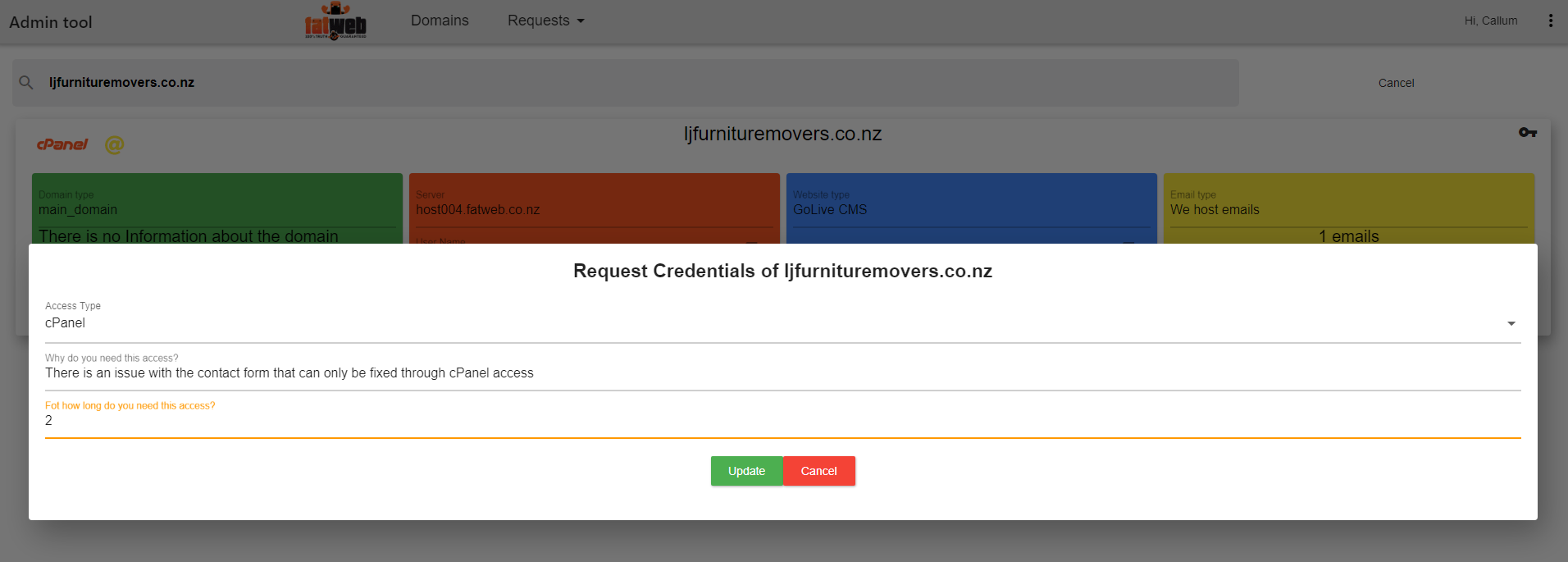
Fill out all of the fields and click ‘Update’ to submit the request.
Note: The 3rd step can only be answered in numerical values.

Now when you click on ‘Requests’ you should see a list of the requests you have made, here you can track the progress to see when the server administrator approves your request.
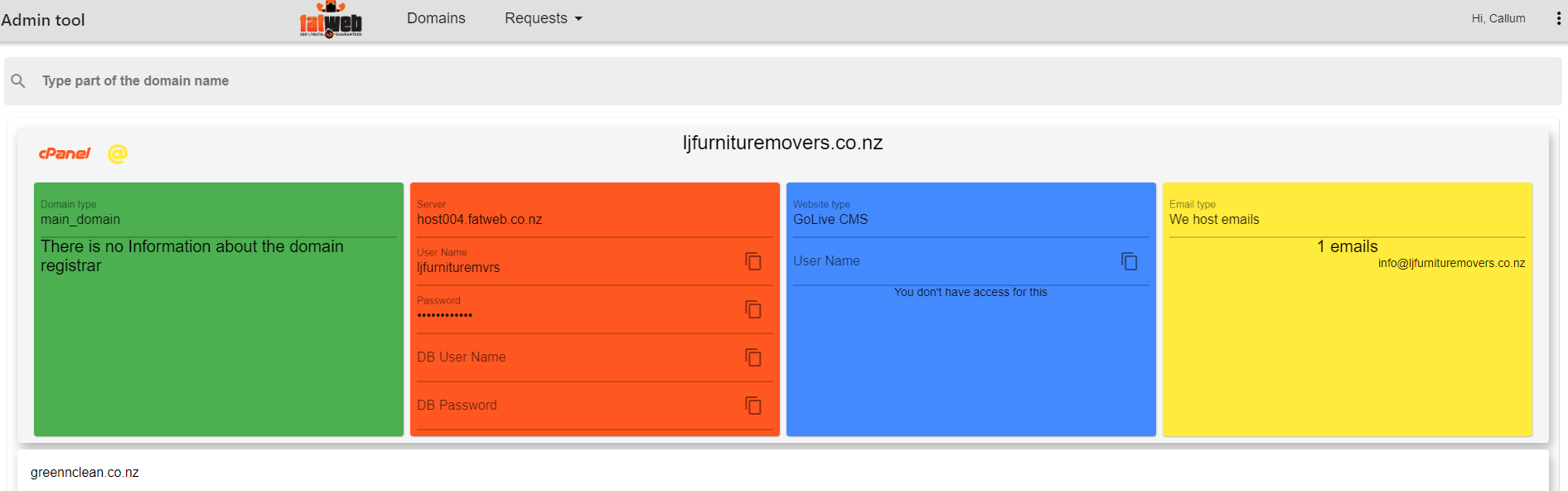
Once it is approved go back into ‘Domains’ and you should see the full access credentials available.
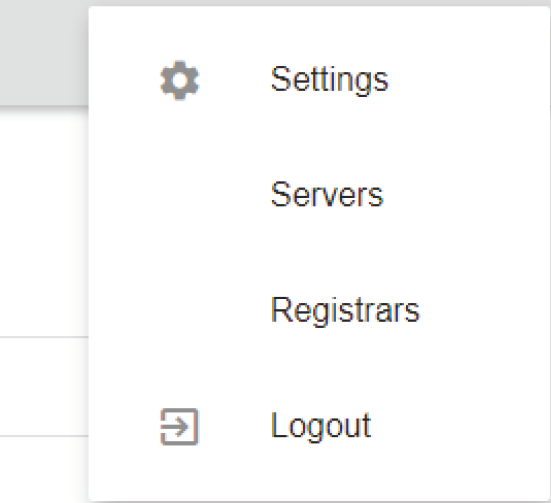
The site will automatically remember your access and keep you logged in. To manually sign out click the 3 vertical dots in the top right of the screen to open the menu. Then select ‘Log Out’.